
Project
Dexter: A Self-Hosted Approach to Automatic CI/CD Using Open-Source Tools on Low-power Devices
Petr John, Kristýna Zaklová, Juraj Lazúr, Jiří Hynek and Tomáš Hruška
The process of software development has widely adopted Continuous Integration and delivery (CI/CD), offering a comprehensive approach to streamlining the development process. Both features are commonly offered by third-party services or cloud-hosted environments, like Amazon AWS or GitHub. While these offerings are widely available and perfect for large projects and companies, they may not be suitable for smaller projects. Factors like the desire to maintain code and deployment locally or cost considerations can drive the search for alternative solutions.
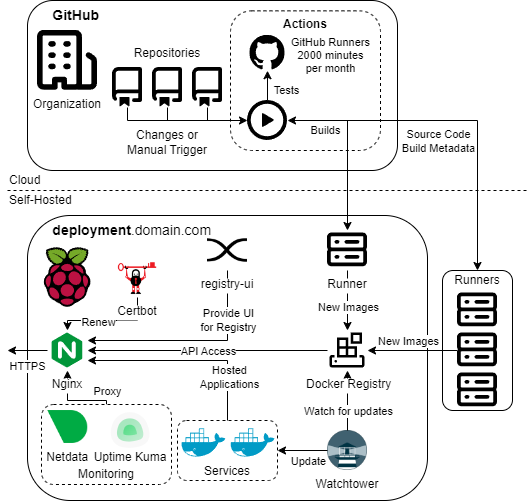
This paper presents an infrastructure mostly based on open-source services that address these specific needs. It is suitable for both development and the automatic deployment of small, locally deployed projects. The solution underwent six months of testing in a lab environment on a low-power device, namely the Raspberry Pi 4B, which was used to both build new versions of the software and host it.
The solution leverages the GitHub self-hosted runner to build Docker images from the code directly on the target device. The images are then pushed into a local Docker Registry. This ensures that the code can be used on multiple architectures, namely the arm64, and amd64, by simply pulling an appropriate image that is cross-built thanks to Docker buildx. The built images can then be automatically updated to deploy or be deployed on different hardware. The solution is suitable for small projects or teams with constrained budgets thanks to the self-hosting of all the components, the low purchase price, and the power efficiency of low-power devices like the Raspberry Pi.
Try it
Setup instructions
-
Install Docker
Based on your platform — follow the Docker documentation.
-
Set up base services
Download docker-compose.yml.
-
Set up the nginx proxy
Download nginx.conf and nginx.htpasswd. Place both files into the folder
./data/nginx/authrelative to the directory where you placed thedocker-compose.ymlfile. -
Replace placeholders
Replace all occurrences of
example.comwith your domain name in bothdocker-compose.ymlandnginx.conf. -
Start up base services
docker compose up -d -
Generate an SSL certificate using Let’s Encrypt
docker compose run --rm certbot certonly --webroot --webroot-path /var/www/certbot/ -d example.com -
Check the registry UI
It should be available under
https://example.com/registry. Log in asadminwith the passwordadmin— and change it right away. -
Add self-hosted runners
Using the instructions on the GitHub page.
-
Done
Everything is set up and you are good to go!
Going further
Additional details
To expand your service architecture, you can easily add more services by creating additional docker-compose files.
This approach allows you to manage and deploy multiple services within isolated containers while maintaining efficient resource usage.
Once you have defined your services in their respective docker-compose.yml files, you can configure the existing NGINX instance to act as a reverse proxy.
NGINX will direct incoming traffic to the appropriate service based on the request’s domain name or path, ensuring seamless integration and communication between your services.
For detailed guidance on setting up NGINX as a reverse proxy, refer to the official NGINX documentation.